Home BETTING TOOLKIT USER GUIDE Functions Markets Filter
Markets Filter
Updated on 2026-09-03The Market Filter is a powerful Betting Toolkit feature that allows you to filter Betfair's entire sports listings based on your desired parameters in just a few clicks.
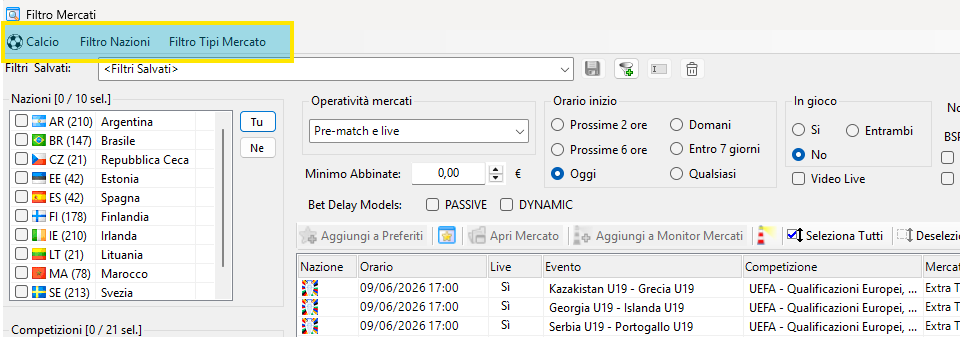
A menu at the top allows you to select the sport and some predefined filters.
Saved Filters
You can save a filter or set of search criteria with a specific name and recall it later using the commands in the bar below the menu.
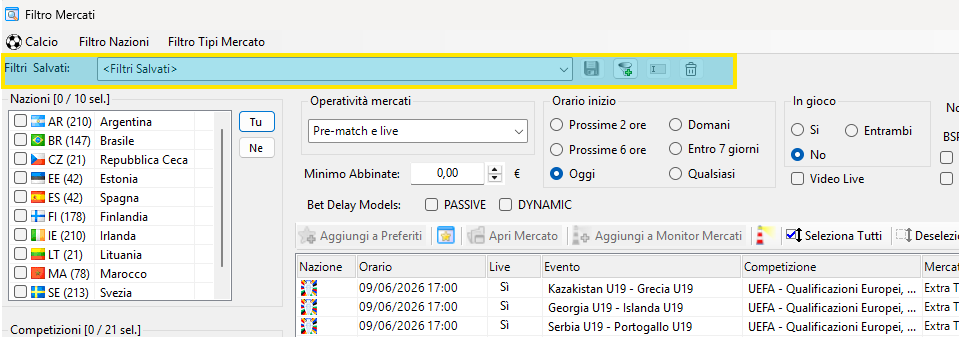
The following commands are available in this bar:
- List of saved filters: Selecting a set of criteria selects all the selected options and automatically updates the market search.
- Update Saved Filter: The currently selected filter will be updated and overwritten with the current selections in the window.
- Add New Saved Filter: A new entry is created in the filter list with the current criteria.
- Rename Saved Filter: You can change the name assigned to the set of criteria.
- Delete Saved Filter: The filter will be removed from the list.
Selecting a Sport Type
Each sport has its own list of predefined filters, so the sport type must be selected first.
Market Search Criteria
On the left are three lists from which you can select Countries, Competitions, and Market Types.
Depending on the sport type selected, some of these options may not be available.
The filtering system is sequential: first select the sport, then click on one or more Countries. Betting Toolkit will display the corresponding Competitions and the available Market Types for each. The "All" button allows you to select all available items, while the "None" button allows you to deselect them.
With these initial filters applied, Betting Toolkit will instantly display the resulting events in the central table, providing for each: country, time, whether it is in play or not, with the remaining minutes if less than 1 hour, the name of the event, the type of competition, the market, and the amount of money placed so far. Filtering the event list can be further refined with all the options available at the top.
Of course, in addition to sport type, we can choose to display events by time based on their start time: we can immediately see events starting in the Next 2 hours, the Next 6 hours, or all Today events. We can go further and have Betting Toolkit show all events for Tomorrow, the Next 7 days, and even the entire schedule by choosing the "Any" option.
With the "Market Operativity" options, we can choose which events will be available Pre-Match and In-Play, which will be available only Pre-Match, or All.
With the "In-Play" options, choosing "Yes" will show Betting Toolkit the events currently live, choosing "No" those that have yet to start, and choosing "All" will show us a list of both.
With the "My Bets" option, we can immediately view a table listing all the markets on which we have already placed bets.
The "Signals" option will only list markets that, in addition to all other parameters, have a valid active signal from the Signals service. This type of filter can be used in combination with the Markets Processors feature to automatically apply strategies to markets with valid signals.
Finally, the "Sort matched" option allows you to first display markets with the highest traded volumes. This option does not sort the matched volume column; rather, it allows the Betfair schedule search to prioritize markets with the highest traded volumes if the results exceed the number of results that can be managed by the search.
You can always sort the results by field by clicking on the column headers.
The "Live Video" option limits the search to events that include live streaming.
Go to... Menu
This menu provides quick access to some of the program's key features: Markets Monitor, Markets Processors, Favorites, and Markets Board.
Button Bar

The button bar allows you to perform the following operations:
Add one or more markets to Favorites
- Open the market window (by double-clicking on the row of a specific market listed in the table or by pressing the "Open Market" button)
- Add one or more markets to the Markets Monitor
- Select or deselect all rows
- Update the markets list based on the current filters
- Reset filters and restore them to the default settings
- Filter countries by continent
Filtering Countries by Continent
Using the Countries Filter menu, you can select all countries within a specific geographic area. If the "Add" option is enabled, selecting subsequent areas will add the countries in that area to those selected. Otherwise, only markets within that area will be selected and all others will be deselected.
Selections Filters
Another option offered by the Markets Filter is to apply filters to the odds values of market selections, selecting only markets containing selections that meet specific criteria:
- the traded volume of the selection
- the best back price
- the best lay price
- the last traded price
In the Selections Filters settings window, you can set multiple filters. All filters must be met for the market to be accepted by the search if the logical AND operator is specified, or only one must be met if the logical OR operator is specified. Each filter can apply to the same or multiple market selections.
Each filter can be selected based on various criteria such as odds, volumes, position in the schedule, and name.
The Selections Filter is configured in the dedicated window, accessed by clicking the "Selections Filters" button. Once the filters are configured, you have three buttons to choose how to operate:
- Cancel: returns to the Markets Filter window, discarding all changes made to the filters.
- Apply: accepts the filter settings but does not immediately perform a new search. To perform a new search, use the "Update" button.
- Apply and Search: accepts the filter settings and immediately performs a new search.
When a Selection Filter is active, it operates in addition to the options selected in the Markets Filter. The presence of an active selection filter is indicated by the color of the button in the "Markets Filter" window. To disable the selection filter, simply access the filter settings window and remove all filters, or right-click on "Selections Filter" in the "Markets Filter" window.
Selection filters are saved along with other parameters when "Saved Filters" are saved. Since this predefined filters can be used in Market Processors, this function can also use this additional market filtering method.
Using the Markets Filter with the Markets Processors
Creating predefined filters is necessary if you want to use the Markets Processors to automatically find markets and apply specific strategies as they appear in the search. When using a predefined filter in the Markets Processors, time-based filters are ignored and the options available in the Processor are used.
