Home BETTING TOOLKIT USER GUIDE Market Window Trading with the Ladder
Trading with the Ladder
Updated on 2026-09-03Placing Bets
Back
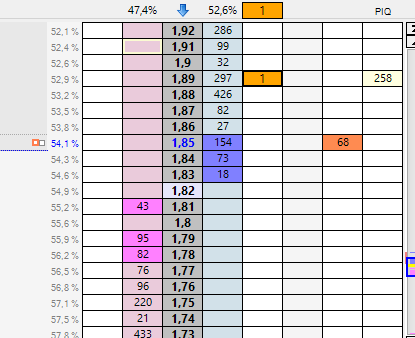
Click the left mouse button on a cell in the column to the right of the odds column (book of available lay bets). For example, in the cell indicated by the arrow below.
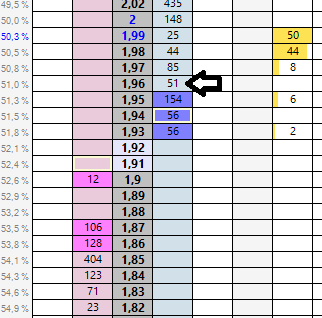
Lay
Click the left mouse button on a cell in the column to the left of the odds column (book of available back bets).
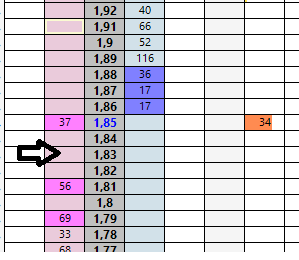
Note: The above describes the default behavior.
The column to click for back/lay depends on the option "Back by clicking on the left of the odds column" in the options window, which allows you to set the program so that backing happens by clicking on the available back odds. The column to click for backing/laying can be easily identified by the color set to represent this behavior.
The odds will correspond to the row of the clicked cell.
Determining the Stake Value
The stake, i.e. the amount to be associated with your bet, can be determined in several ways. The calculation method is selected using the Stake menus in the main window, while the starting amount used to determine the stake can be specified either in the main window bar, next to the selected mode, or by using the Stake buttons on the Ladder. If these buttons are enabled, their amount takes precedence.
The Stake calculation mode menus allow you to select a specific method for Back and Lay bets.
Back bets:
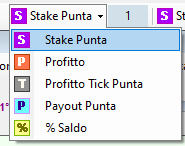
Lay Bets:
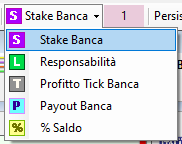
The value used to calculate the stake when trading on the Ladder will be as follows:
- if the stake buttons are active, the stake selected at that moment in the stake buttons.
- If the stake buttons are not active, the stake selected in the upper bar of the main window.
This value corresponds to the actual stake of the bet only when the stake option in the main window is set to the “S” symbol (Back Stake or Lay Stake in the previous images).
If any other option is selected, this value is not the actual stake, but the starting value used to calculate the actual stake, as explained below.
| Stake Selection in the Main Window | Actual Stake Value |
| S (Stake Back, Stake Lay) | This is the simplest case. The specified value is the bet stake, with no further adjustments. |
| P (Profit) L (Liability) | The specified value represents the desired profit (for a Back bet) or liability (for a Lay bet). For example, if you enter 1 and place a Back bet at odds of 1.30, the stake will be 3.33, which is the stake required to generate a gross profit of 1. |
| T (Profit per tick) | The specified value represents the profit to be achieved with a pair of Back/Lay or Lay/Back bets placed one |
| P(Payout) | The specified value represents the payout of the bet. For example, if the value is set to 10 and you place a bet at odds of 5.00, the stake will be 10 / 5 = 2, since PAYOUT = STAKE × ODDS. |
| ?lance | The specified value represents the percentage of the current balance to be used as the stake for a Back bet. For example, if the value is set to 2, the stake will be equal to 2% of the current balance. For a Lay bet, the value represents the percentage of the balance to be used as liability. |
Placed bets are displayed as a small box, which is orange by default, although its color can be customized in the Options. The bet box has a thick border if the bet persistence is set to “Keep”, or a thin border if the persistence is set to “None”.
Stake Modifier Buttons
When placing a bet, i.e. when clicking on the Ladder, you can press a modifier key as indicated below.
- "Take All" Bets
Hold down the CTRL key on the keyboard while clicking the mouse. The stake, notwithstanding the amounts above, will be limited to the amount available in the book. For example, if 2 euros are available in the book for laying and a stake of 5 euros is placed at that odds, normally 2 euros would be matched, and 3 euros would remain in the market. Holding down the CTRL key will immediately and only for that bet reduce the stake to 2 euros. - "Void" Bets
Hold down the SHIFT key. The program will automatically calculate the stake necessary to zero the economic outcome in case of a win for the selection in question with a bet placed at the indicated odds.
Warning: when holding down the SHIFT key and selecting an already placed bet instead of the bet placement area, the behavior is different: closing or stop-loss bets are added or removed. See below for further details. - Instant Fill or Kill Bets
By holding down the ALT key, when Trading Mode is not enabled, any portion of the placed bet that is not immediately matched will be cancelled straight away, without remaining in the order book.
If the bet confirmation option is active, a summary window will appear where the odds and stake of the bet can still be modified; otherwise, the bet will be sent directly to the market.
Trade Closing Bets (Pending Bets)
If Trading Mode is enabled in the main window, each bet will be associated with a closing bet (Pending Bet) placed at a distance corresponding to the specified number of ticks.
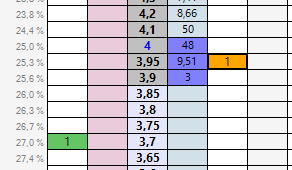
The term “Pending Bets” means that these bets are not currently on the market; they are stored only in the program's local memory and are ready to be placed as soon as the original bet is matched. Note that even a partial match will trigger the placement of an opposing bet proportional to the matched portion. In the following image, the Back bet is shown in orange and the closing bet in green.
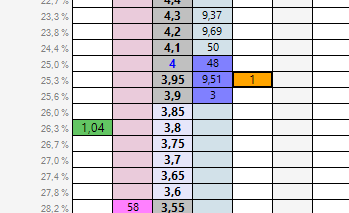
If the Smart option is enabled in addition to Trading Mode, the opposing bet will not have the same stake as the original bet. Instead, its stake will be calculated so as to distribute the profit across all possible outcomes. See the example in the following image.
Cancelling Bets
To cancel a bet, click on the cell in the bets column that represents the bet.
If there are multiple bets, Betting Toolkit behaves as follows:
- left mouse click on a bet: bets are canceled one by one with each click, starting from the most recent bet.
- right mouse click on a bet: all bets at that odds are canceled with a single click.
Alternatively, bets can be canceled cumulatively as follows:
- all back bets or all lay bets: Click with either the left or right mouse button on the corresponding cell of the ladder header.
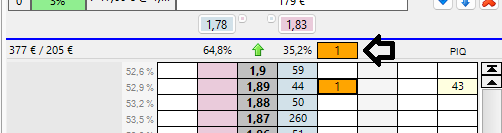
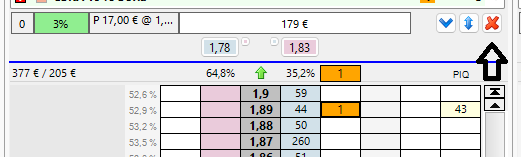
- all bets for the selection (back and lay): Click on the cancel button in the first row of the ladder table header.
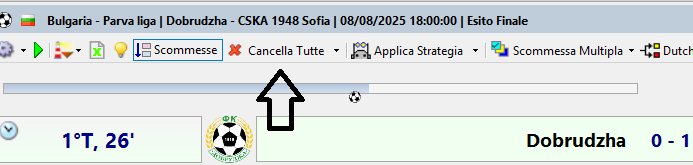
- all bets in the market: Click the button to the left of the button bar in the market window.
Moving Placed Bets or Pending Bets
Click the left mouse button on the cell representing a specific bet and drag it to the new odds.
Note: For placed bets, moving a bet is equivalent to cancelling it and placing a new one. Therefore, if the market has a bet placement delay, i.e. it is an in-play market, the applicable delay must be observed before the new bet is placed.
Pending Bets, on the other hand, can always be moved in real time.
Placing a Conditional Order
See the page dedicated to Conditional Bets for details on how they work.
Conditional Back Order
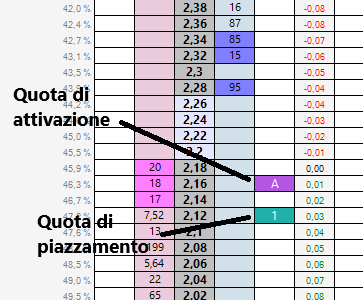
Right-click the column to the right of the odds column at odds lower than the best available Back odds (best Back odds).
The activation of the conditional Back bet depends on the best Lay odds reaching the odds specified as the condition (trigger odds).
Conditional Lay Order
Right-click the column to the left of the odds column at odds higher than the best available Lay odds (best Lay odds).
The activation of the conditional Lay bet depends on the best Back odds reaching the odds specified as the condition (trigger odds).
Defining the Spread in Ticks Between Trigger Odds and Placement Odds
A conditional bet has two odds values: trigger odds and placement odds. These odds are separated by a specified number of ticks. This makes it possible, for example, to increase the likelihood that the order will be matched even in highly volatile market conditions. The default spread is defined in the Trading Parameters window in the Options. If bet confirmation is enabled, the spread can be specified each time before placing the bet.
Protection Against Accidental Clicks
If the selected odds would result in immediate execution (for example, when attempting to set a conditional Lay bet within the odds range where the bet would immediately be queued in the order book, i.e. below the best available Back odds), the command is ignored by the Ladder.
Conditional Bet Confirmation Window
If bet confirmation is enabled in the Options, a summary window for the conditional order is displayed, where you can specify the placement odds in detail. Otherwise, the order is set directly, with the placement odds separated from the trigger odds by the number of ticks specified in the Trading Parameters window.
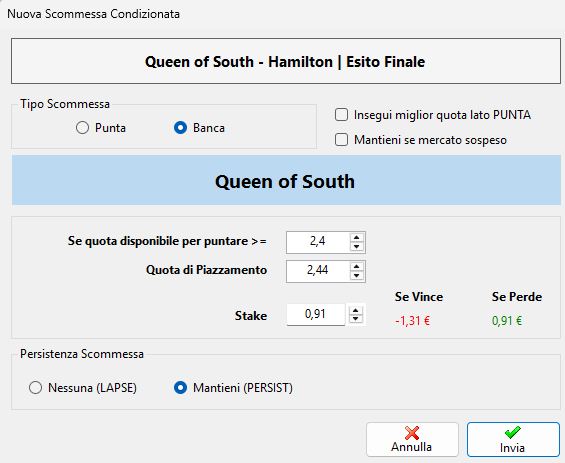
If the confirmation window is enabled, you can also specify whether a conditional Back order should follow the best Back odds if they move upwards. This option can also be configured in the Trading Parameters window.
The bet persistence can also be configured in the Trading Parameters window.
Cancelling a Conditional Order
Left-clicking the trigger odds cancels the Conditional Bet.
Modifying a Placed Bet or Conditional Order
Left-click the cell representing a specific bet or conditional order while holding down the CTRL key on the keyboard. For a conditional order, click the trigger odds. Bet modifications will be handled as described here.
Adding a Trade Closing Bet to a Bet That Does Not Have One
Hold down the SHIFT key on the keyboard and left-click the bet box. If a Trade Closing Bet is already present, it will be removed.
Adding a Stop Loss to a Bet That Does Not Have One
Hold down the SHIFT key on the keyboard and right-click the bet box. If a Stop Loss is already present, it will be removed.
Cash Out
It is possible to perform a cash out to fix the profit/loss of trading operations made on a specific selection by clicking the button at the top right of each ladder. The amount that can be obtained from this operation is shown on the button.
Clicking this button will display a confirmation window, or the corresponding bet will be sent directly to the market. This depends on whether the "Show confirmation window for Cash Out" option in the Cash Out page of the options window is enabled or not.
It is important to note that this button is not always visible because to perform the Cash Out operation, there must be available odds in the book that allow it.
Please see also:
