Home BETTING TOOLKIT USER GUIDE Main Window Markets Quick Pick
Markets Quick Pick
Updated on 2026-09-02In the main window of Betting Toolkit, after logging in, you can quickly access markets using the Quick Pick function, which displays four tabs: Events & Markets, Countries Filter, Competitions Filter and Favorites.
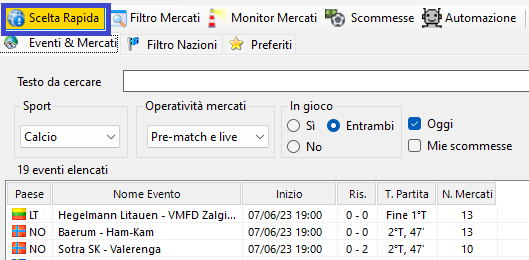
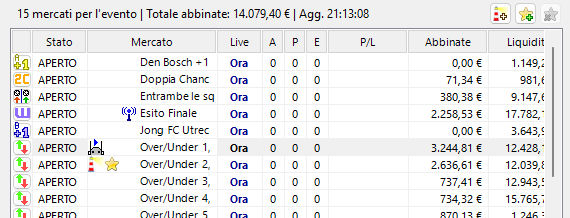
With Events & Markets, for each event, you can instantly obtain a list of all the available markets to trade on for that specific event, along with a series of very useful data that provides an immediate overview of the market characteristics. This includes information on the market status, total matched money, individual market money, and the back and lay odds for the favorite selection.
The Quick Pick window allows you to search for markets using three different modes. You can select the desired mode using the buttons in the top-left corner.

• Event and Market Search: this is the default mode and allows you to search the current market catalogue by applying various filters.
When using Event and Market Search mode, two panels are available for selecting Countries and Competitions, provided that the selected sport supports these options.
The Country Filter tab contains a list of all countries associated with the corresponding events and markets. Betting Toolkit allows you to select individual countries or, using the buttons at the bottom, select all countries belonging to a specific continent at once. For example, if you only want to display events taking place in Europe, where many of the major competitions are held, simply click the corresponding button. Betting Toolkit will select all European countries and display only European events and their associated markets in the Events & Markets tab.
The Add option allows you to combine multiple continents, resulting in a list of events and markets from the countries belonging to the selected continents. The All and None buttons allow you to select or deselect all countries at once.
• Hot Events: displays the main or currently relevant events for each sport.
• Preset Filters: allows you to use filters created in the Market Filter window to quickly run predefined searches.
PLEASE NOTE: if a preset filter returns more than 100 markets, only the first 100 will be displayed in the markets table.
Only for Football Events, an additional panel is displayed containing two special tables:
• An Under/Over market summary table showing the best Back and Lay odds for the Over and Under selections of each market.
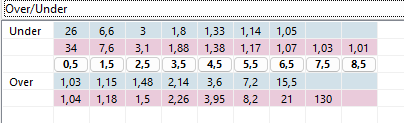
The central row contains buttons that provide direct access to the corresponding markets.
- A table called Score Radar, which provides an immediate overview of the probabilities assigned by the market to each possible score.
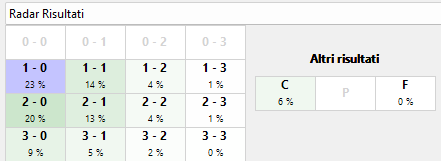
The score currently considered most likely according to the market odds is highlighted in blue, while the other scores are shown in progressively darker shades of green as their implied probability based on the current odds increases.
The selected table is retained when navigating between different events and is also preserved when the session is closed and restored.
In Events & Markets, in addition to a field where you can type the desired text (e.g. the team name) that shows the search result almost instantly, there are quick options to immediately find the desired event or events by filtering them by type of sport, game situation (e.g., in play or not in play), today's events, and events and markets where we have already placed our bets.
Tabella dei Mercati
In the markets table, there are two icons: one to add the desired market to the Market Monitor, represented by a lighthouse (keyboard shortcut CTRL+PLUS), and the other, represented by a star, to add the desired market to the Favorites list (keyboard shortcut SHIFT+PLUS).
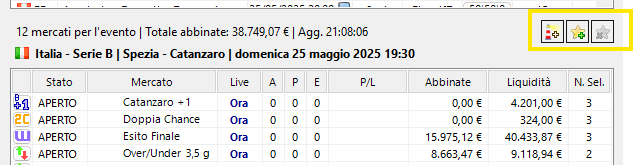
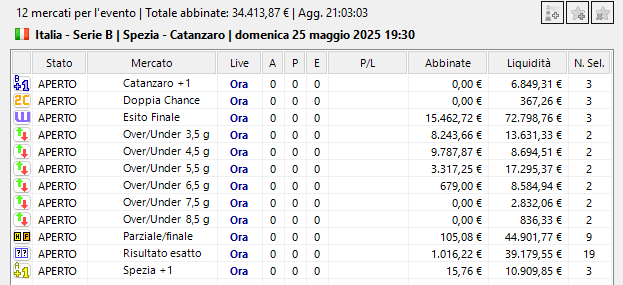
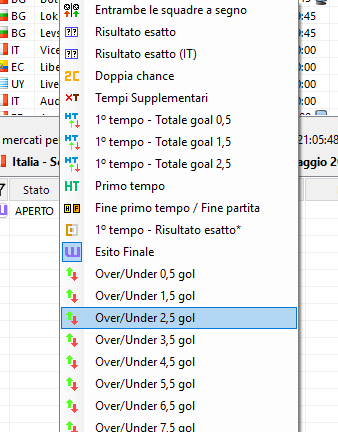
To open a Market Window, simply double-click a row in the markets table or click the corresponding button, whose icon represents the market type (first column of the table).
The columns in the markets table can be configured both in terms of the data displayed and the order in which the columns appear. To customize these settings, open the Options window, go to the General tab, and select Quick Market Search Columns.
Note: when using Preset Filters mode, the markets table can also include the event name column, the start time column, and columns relating to the match status (match time and score).
The Quick Pick market window can be detached from the main window and used as a standalone window. To do this, simply double-click one of the page tabs (Events & Markets, Country Filter, Competition Filter, Favorites) or drag it a short distance with the mouse.
Betting Toolkit also includes a more advanced search system called Markets Filter, which uses powerful filters to perform more detailed and targeted searches across the entire Betfair market catalogue. Further details and explanations about the Market Filter can be found on the page dedicated to this feature.
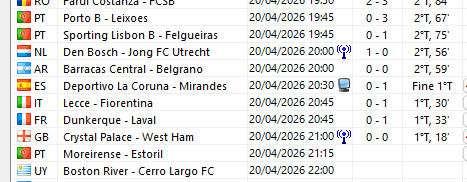
- Whether the event contains markets with signals
- Whether live streaming is available for the event
Market List Icons
In the market list, some icons next to the market name indicate respectively (see figure below):
• Whether signals are present (antenna icon)
• Whether a strategy is running (robot icon)
• Whether the market is included in the Market Monitor (lighthouse icon)
• Whether the market is included in Favorites (star icon)