Home BETTING TOOLKIT USER GUIDE Options Ladder Settings
Ladder Settings
Updated on 2026-09-04The settings in this section concern the ladder table of the market window. The following options can be specified:
Coloring available Back / Lay: you can choose the ways to color the background of the cells with values available in the book. Three different coloring modes are available::
- Best 3 odds: the best 3 back odds and the best 3 lay odds are highlighted
- All odds: all cells with available proposals are highlighted
- Proportional Bars: cells are colored with histograms proportional to the amount of money available at various levels.
Ladder Cell Width, Ladder Cell Height: you can set the size of the cells to optimize visibility.
Maximum Number of Ladders: this option allows you to set a limit on the maximum number of Ladders displayed in a Market Window. A market can contain a large number of selections (more than 20). While all selections are visible in the Grid because they are displayed in rows, the number of Ladders that can be displayed on the screen depends on the size of your monitor and the amount of data configured to be shown on each individual Ladder.
In addition, limiting the number of Ladders can improve performance. It is therefore recommended to leave this setting at its default value (3), unless you have specific requirements or a particularly large screen.
Left ladder chart: it is possible to indicate whether to display the graph, its width and whether or not to show the probability percentages corresponding to the odds. Furthermore, it is possible to select two types of graph:
- Odds matched
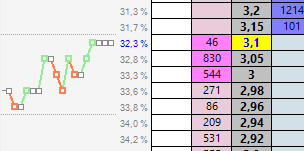
- Candlestick
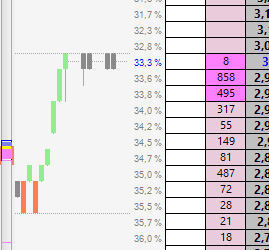
Behavior at market opening: specifies how the program behaves when a Market Window is opened, including the selection order, whether the Stake buttons and bottom panel are displayed, and, for the latter, which page should be shown initially.
Selection name:
in the drop-down box that controls the choice of ladder selection it is possible to display the following data or not:
- number of matched / unmatched bets
- progressive selection number in the Betfair ordering system
- last traded price.
Volumes
It is possible to make the following choices regarding the traded volumes.
- Show volumes in percentage: allows you to view the volumes expressed as a percentage of the entire amount traded for that side of the book. Volumes are normally expressed as the absolute amount traded.
- Highlight recent volumes in histogram: indicates whether to color recent volumes differently and the time that identifies when a traded volume should be considered recent.
Show Stop Loss Placement Odds: specifies whether the corresponding Placement Odds should also be displayed together with the Stop Loss (Trigger Odds).
Highlight Best Back Price / Best Lay Price at the Start of the Event: if this data is available, the corresponding cells will be highlighted.
Highlight Betting Area Cell on Mouse Hover: when this option is enabled, the Ladder cell under the mouse pointer is highlighted to help prevent accidental clicks.
Auto-Center Ladder Every X Seconds: when this option is enabled, the Ladder is periodically re-centered to keep the relevant odds visible as the trading area moves through the order book. Auto-centering is suspended while the mouse pointer is over the Ladder to prevent the odds from moving while the trader is clicking, thereby avoiding accidental clicks on unintended cells.
Automatically Center Ladder After Suspension: you can configure the Ladder to be automatically re-centered when the market reopens after a suspension.
Back by Clicking to the Left of the Odds Column: when this option is enabled, a Back bet is placed by clicking the available Back odds (the column to the left of the odds column), while a Lay bet is placed by clicking the available Lay odds (the column to the right of the odds column). If this option is disabled, which is the default setting, the software behaves in the opposite way: a Back bet is placed by clicking to the right of the odds column, matching against the available Lay odds, while a Lay bet is placed by clicking to the left of the odds column, matching against the available Back odds.
Show LTA in LTP row: when this option is enabled, the Last Traded Amount (LTA) is displayed in the Last Traded Price (LTP) row.
Show Classic Scrollbar: specifies whether the classic scrollbar is displayed instead of the advanced one.
FIRST HEADER ROW
Show First Header row: enables the display of the first header row.
Information Priority: allows you to define the order of the information displayed in the first header row. If the Ladder is resized, for example by disabling the chart or some columns, the reduced available space may make it impossible to display all the information. In this case, only the first items according to the specified priority order will be shown.
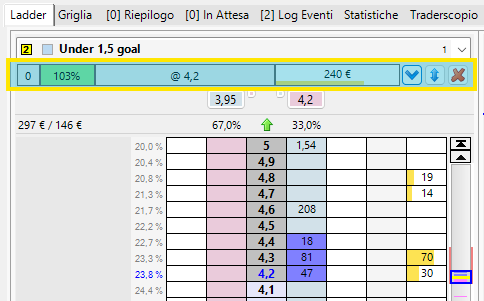
THIRD HEADER ROW
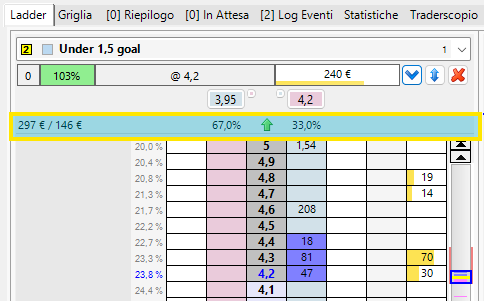
Show Bet Summary on Mouse Hover: when this option is enabled, a preview of what will happen if you click a cell to perform a trading operation is displayed.
Number of Order Book Price to Consider When Evaluating Market Trend: specifies the number of odds levels to consider when evaluating the relative weight of the Back book compared with the Lay book.
Bottom Panel Tab Height: allows you to set the height of the bottom panel tabs when they are opened. The values are listed in the same order in which the tabs appear in the Ladder.
Columns: some Ladder columns can be enabled or disabled: PIQ, Cash Out, Volumes. You can also optionally display My Bets in the Odds column.
