Rules
Updated on 2026-09-24A Betting Toolkit Strategy consists of one or more rules that operate independently.
A Rule contains two sets of objects: Conditions and Actions.
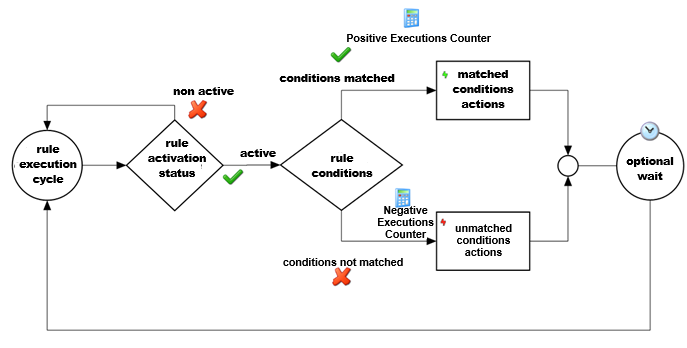
The execution cycle of a rule can be summarized as follows.
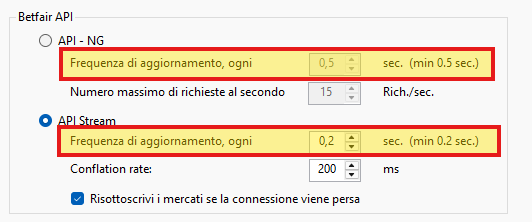
Each Rule is evaluated at every market update. The market refresh rate is configured in the Options, depending on whether API NG mode or Stream mode is being used.
It is advisable to initially set a longer refresh interval and then increase the refresh rate (shorter interval) after evaluating the capabilities of your computer and Internet connection.
The rule is first evaluated for activeness based on the properties that determine its active/inactive status. Specifically, the conditions that cause the rule to be activated and the conditions that cause it to be deactivated are defined, and this is done by operating on the rule's Properties.
Conditions
If the Rule is active and not suspended, the Conditions are evaluated. Based on the outcome of the Conditions, the operational part of the Rule, consisting of the Actions, is executed.
Actions
Actions are divided into two groups: those to be executed when the Conditions are met and those to be executed when the Conditions are not met.
Actions are executed in the assigned order based on their priority. It is recommended to assign lower priority values to the Actions that should be executed first.
Rule Name
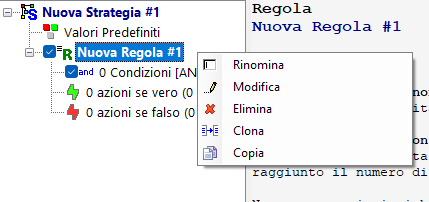
A rule has a name that can be defined either by accessing the "Edit Rule" command or by using the "Rename" command by right-clicking on the rule node, or by selecting the rule node and pressing F2 on the keyboard. The rule name should briefly describe what the rule will do. The name is reported, for example, in the strategy logs, allowing you to identify which rule is doing what.
Rule Status (Active/Inactive)
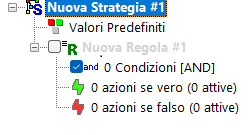
Each rule can be activated or deactivated by selecting the corresponding check mark in the strategy tree.
By deactivating a rule, you can temporarily prevent it from functioning and then reactivate it later without having to delete and recreate it. Be careful not to inadvertently deactivate a rule, as this will cause it to stop functioning. When you find that a strategy is not functioning as expected, in addition to reviewing the rule's activation time conditions, you should verify that it hasn't been inadvertently deactivated by unchecking the rule in the strategy tree.
Rule Properties
In addition to activating or deactivating the rule, you can specify additional parameters that determine the time frame within which it will be effective.
You can also limit the number of rule executions and specify a waiting period between executions.
You can access the rule parameters by double-clicking the rule node, right-clicking and selecting "Edit Rule" from the drop-down menu, or clicking the "Edit Rule" button on the Strategy Manager toolbar.
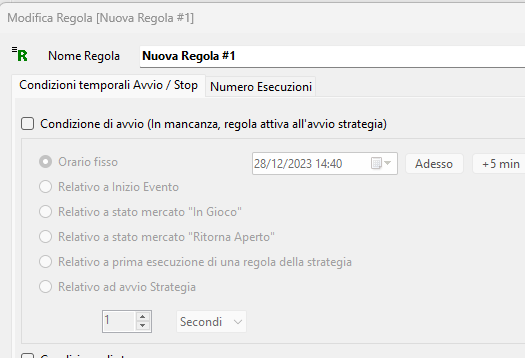
Start/Stop Time Conditions
A rule may or may not have execution time conditions that define the time window during which it is effective:
Start Condition: Specifies the exact time the rule begins to execute. If no start condition is specified, the rule will be effective immediately as soon as the strategy is started. This time can be:
- a fixed time
- a specified time relative to the start of the event, before or after it
- a time specified for when the market becomes "in- play"
- a time specified for when the market reopens after a suspension.
- a time specified for the first execution of a strategy rule.
- a time specified for when the strategy was started.
Stop Condition: Specifies the time at which the rule stops being executed. This time can be specified in various ways, such as the start time. The time on the execution PC is used to evaluate the start/stop times for the "Fixed Time" selection. Make sure this is set correctly.
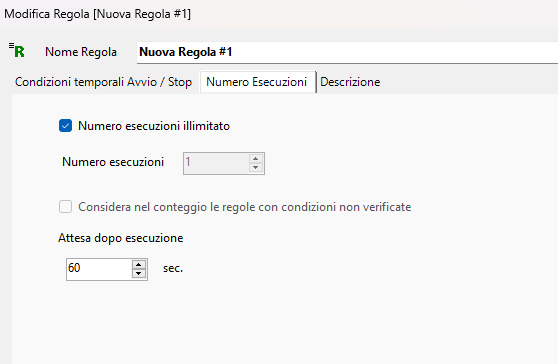
Number of Executions
Rule execution is also controlled by two additional parameters:
- the number of rule executions, at which point it stops. The number of executions can also be specified as "unlimited," meaning the rule will continue to execute until the strategy is stopped or the start/stop conditions allow it;
- waiting time after each execution: You can specify a minimum waiting time between one execution and the next.
When a rule is evaluated as active and the conditions are met, it is considered "executed" and its counter is incremented. Optionally, you can decide to consider a rule executed even if the conditions have failed, incrementing the counter in this case as well. To do this, select the "Include rules with unmet conditions in the count" option on the "Number of Executions" page of the rule properties. The wait time after execution will also follow this setting. If executions where the conditions evaluate to false are also taken into account, the timer will be reset each time the rule is evaluated. With the default setting, however, the timer is reset only when the conditions are met.
Color
A specific color can be enabled to make the rule easier to identify in the strategy tree. This is a purely visual property that can help you locate rules more easily within complex strategies. To enable the color selection button, select the checkbox and then click the button to choose the desired color. To disable the coloring, clear the checkbox.
Feedback on Rule Execution
In the Market Strategy Application Window, the Strategy tree provides important information about how execution is progressing.
Some of this information relates to the status of the Rules. See the dedicated page for details.
