Home BETTING TOOLKIT USER GUIDE Betting Toolkit Automation Strategy Manager
Strategy Manager
Updated on 2026-09-05The Strategy Manager tool allows you to create and edit strategies to be applied to the markets.
The Strategy Manager window is divided into four areas, described below:
- List of available strategies: The list is initially empty; to create a strategy, click the "New Strategy" button. You can view the name and optionally the file name for each strategy.
- Tree of rules, conditions, and actions for the selected strategy. This area is where you build your strategy.
- Strategy description: A text box is available where you can write a short description of the currently selected strategy. Individual rules can also be described using the notes field by accessing the rule properties.
- Description of the selected strategy tree node: This area provides a detailed description of the node (strategy, rule, action, condition, or condition node) currently selected in the strategy tree.
Strategy files
The file name of the currently selected strategy is displayed in the lower status bar. The strategy files listed in the Strategy Manager (.bts extension) are stored in the "Strategies" folder in the common files folder in the Betting Toolkit program folder. However, a copy of any strategy can be stored anywhere and accessed from any folder. When a strategy is opened from a folder other than the one indicated above, a copy of it is created in the strategies folder.
The strategies folder therefore contains all the strategies ready to be applied to a market.
Within the strategies folder, files can be organized into subfolders, and this type of hierarchical structure will also be displayed in the strategy application menus in the Market and Markets Monitor windows. This allows you to manage numerous strategies, for example, by storing commonly used ones in the main folder.
Strategy Tree
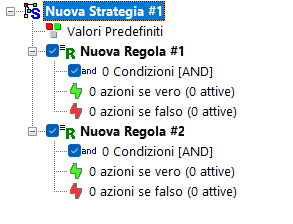
The strategy tree is composed of the following:
- Main node: contains the name of the strategy; it is the root node of the entire tree. Clicking on it in the node description on the right displays a summary of the strategy.
- Rule nodes: a strategy is made up of one or more rules. There is no limit to the number of rules that can compose a strategy. Each rule has its own start and stop settings. Rule processing and execution evaluation begins when the strategy is started and ends when the strategy is stopped. Within this time frame, each rule can have its own execution time conditions.
- Base conditions node: Each rule is assigned at least one condition node. Each node can contain multiple conditions and multiple condition nodes.
- Action nodes: Each rule contains two action nodes, which in turn contain the actions to be executed if the conditions in their logical arrangement trigger its execution. Specifically, it is possible to define two sets of actions: those that are executed if the conditions are met (green lightning bolt icon) and those that are executed if the conditions are not met (red lightning bolt icon).
The numerous types of Conditions and types of Actions available are the building blocks for building your strategy.
Renaming a Strategy
Select the first node in the tree and press F2 on the keyboard, or right-click and select "Rename."
Strategy Properties
By double-clicking the node with the strategy name or selecting it and clicking the "Edit Strategy" button, you can set the Strategy Properties. In the Properties window, you can, among other things, protect the strategy with a password.
Default Strategies
Right-clicking a strategy in the list displays a menu that repeats some commands from the toolbar and allows you to activate or cancel the definition of Default Strategies. For details on defining Default strategies, see the page describing Applying Strategy to the Market.
